
Quick start
Step 1
Select the starting pocket
Create or select the circle, rectangle, rounded rectangle, or polygon you want to repeat, then choose Create grid in its properties.
Step 2
Set the layout
Choose horizontal or vertical, enter the rows and columns, and adjust the row and column gaps. Stagger rows when an offset layout packs the objects more naturally.
Step 3
Populate sizes
Enter a starting size and step, then select Populate. Decimal and common fractional increments can fill the table quickly.
Step 4
Review and create
Override any generated size or label in the table, check the scaled preview and footprint, then create the grid.
Sizes and Populate
Populate is a shortcut, not a lock. It fills the editable pocket table from your starting values and steps; you can change any row afterward.
Circles
Use one starting diameter and one diameter step.
Rectangles and polygons
Width and height have independent starting values and steps.
Choose Fraction for common inch steps such as 1/32, 1/16, 1/8, 1/4, and 1/2. Use Decimal for other increments or when working in millimeters.
Examples: sockets, casings, and bits
Use the object’s measured outside dimensions for the pocket, then use its familiar nominal size for the label. Those values are often different. Enter the measured object size and use the configurator’s pocket-fit setting for fit allowance rather than guessing at extra clearance.
Sockets
A socket marked 10 mm does not have a 10 mm outside diameter. The socket body adds wall thickness around the fastener opening, and that thickness varies by brand, drive size, depth, and whether it is a standard or impact socket.
Measure the widest outside diameter of every socket with calipers. Enter those measured diameters in the pocket table, but label the rows with the marked sizes, such as 10 mm or 1/2 in.
Casings
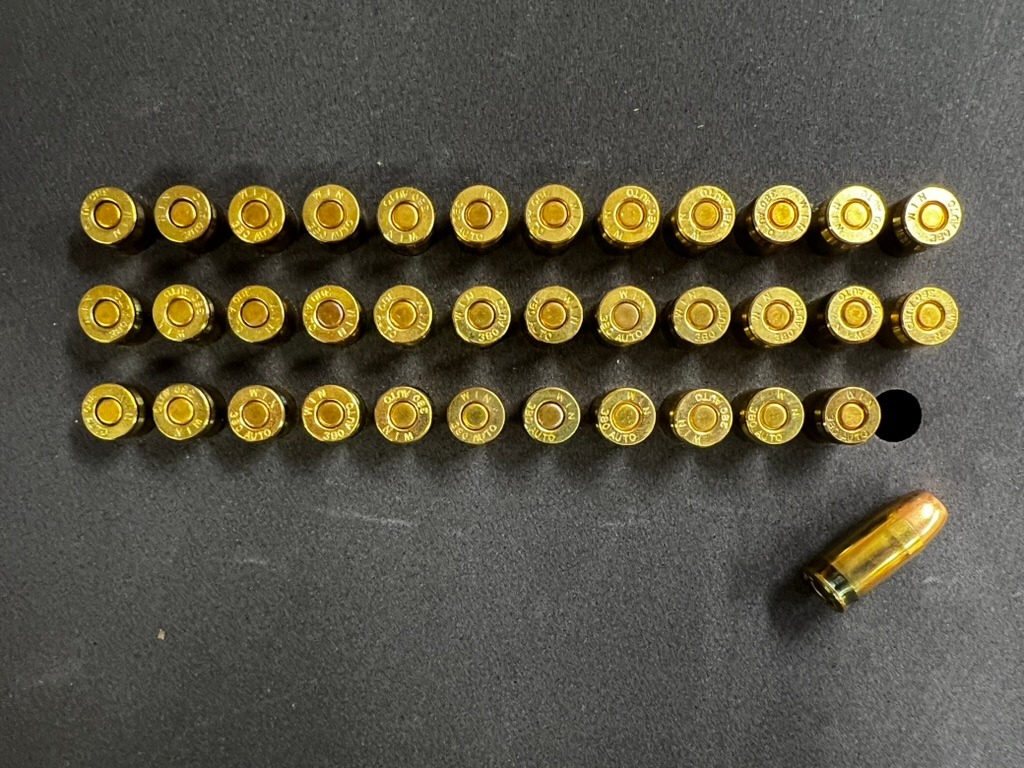
Measure the widest part that must enter the foam—not only the narrower body. A rim, flange, shoulder, cap, or other raised feature may determine the required pocket diameter.
Measure several samples when dimensions can vary, use the largest practical measurement, and confirm whether each casing will be stored upright or on its side before choosing a circle or rectangle pocket.
Bits
Decide which end enters the pocket. A bit’s nominal cutting size may differ from its shank diameter, and flutes or cutting edges can be wider than the shank.
Measure the portion that will sit in the foam and use that measurement for the pocket. Use the bit’s marked cutting size as the label so it remains easy to identify.
Labels
Place labels consistently
Use Perimeter to choose an outer side automatically, or choose Top, Bottom, Left, or Right. Inside is a separate option and can be combined with an outside label.
Edit one or all
The controls above the table apply placement or Inside to every row. Each table row can then override its label and placement independently.
Spacing and fit
Row gap is the clear space between rows; column gap is the clear space between columns. Labels can require a larger gap, so changing label size or placement may automatically increase the minimum needed value.
Grid layouts can use tighter spacing than separate pockets. Follow any spacing or fit warning shown in the dialog, and keep the entire footprint within the available insert area.
If the dialog reports a fit problem, reduce the pocket sizes, rows, columns, or label length; increase the appropriate gap; or move labels inside.
Editing and Ungrid
A completed grid appears as one item and moves or rotates as one object. Resize is locked while it remains a grid; choose Settings to change its layout, spacing, pocket dimensions, or labels.
When you choose Ungrid
A confirmation dialog lets you cancel or choose one of these two ways to remove the grid:
Dialog option
Keep original only
Removes the generated copies and keeps the first pocket.
Dialog option
Separate all
Makes every pocket independent and turns visible labels into separate editable text items. You may receive a fit error when choosing Separate all because a grid can use tighter spacing than standalone pockets allow. Increase the gaps during separation to give the separated pockets enough room.
Before finishing
- Confirm every diameter, width, and height against the actual objects.
- Check the footprint and available size shown beside the preview.
- Review labels in both the canvas and 3D preview.
- Verify pocket depth, object exposure, foam support, and case or drawer clearance.