
Photo Trace workflow
Step 1
Add a photo
Upload a photo, use the device camera, or send a photo from your phone when that option is available.
See photo setup ↓Add a photo by scanning the Phone QR option, opening the camera, or uploading an image. Step 2
Auto-trace or trace manually
Select the object to have its outline traced automatically. If auto-trace does not follow the object well, choose Manually Trace Object and draw the outline yourself by placing points around it.
See tracing guidance ↓Select the object again to auto-trace it, or continue to manually trace its outline. Step 3
Review the outline
After auto-tracing, check the entire outline and adjust the results. Move, add, or remove points to correct missed edges, shadows, and unnecessary details. Review manual outlines too.
See cavity guidance ↓Review the outline, then drag, add, or remove points to refine the object boundary before continuing. Step 4
Set the size
Enter two accurate measurements in different directions, then confirm the final width and height before adding the pocket.
See sizing guidance ↓Add two accurate measurements, then confirm the sizing check before inserting the pocket.
Set up the photo
A careful photo makes the outline easier to detect and reduces the amount of editing needed afterward. Photograph the object as you plan to store it, including attached bits, batteries, or other accessories. Allow room for those attachments in the pocket and enough space to place and remove the complete tool easily.
Use a contrasting background
Place the object on level ground or a level table with a solid background that clearly contrasts with its edges. Use bright, even light and avoid glare or hard shadows.
Photograph straight down
Keep the camera parallel to the table or floor and use the 1x lens. On the photo capture page, use the level guide to shoot straight down and keep its center mark over the middle of the object. Move farther away for larger objects to reduce perspective distortion.
Prefer one object at a time
Keep one object near the center for the most accurate result. Photograph it in the same resting position and tilt you want in the insert.
Take two measurements
Measure the object accurately in two directions that are approximately at right angles. These measurements set the final size.
Consider a simple shape before tracing
Many objects work best in a basic pocket such as a rectangle. A rectangular pocket can be more flexible than an exact outline, giving you room for different items or a changing collection of parts. You can create one directly in the configurator without tracing a photo.
Use rectangle pockets as parts trays for screws, fittings, and other loose pieces, or for small objects that are difficult to trace. Choose a depth and opening that let you reach the contents easily. When an object needs a secure, close fit, a traced outline may be a better choice.
Follow the outside edge
Auto-trace: Select the object in the photo to generate an outline. Treat the result as a starting point: zoom in and check the full outline, then drag points to adjust them and add or remove points where needed. Correct any edges that follow shadows or miss part of the object before continuing to sizing.
Manual trace: Choose Manually Trace Object and click around the object to place outline points. Add points where the edge changes direction, then click near the first point to close the outline. You can adjust the points afterward, just as you can with an auto-traced outline.
Place points directly on the object’s visible outside edge. A line inside the edge can make the pocket too small; a line on the background can make it too large. Add points where the edge changes direction, but avoid copying every tiny surface detail or narrow snag point.
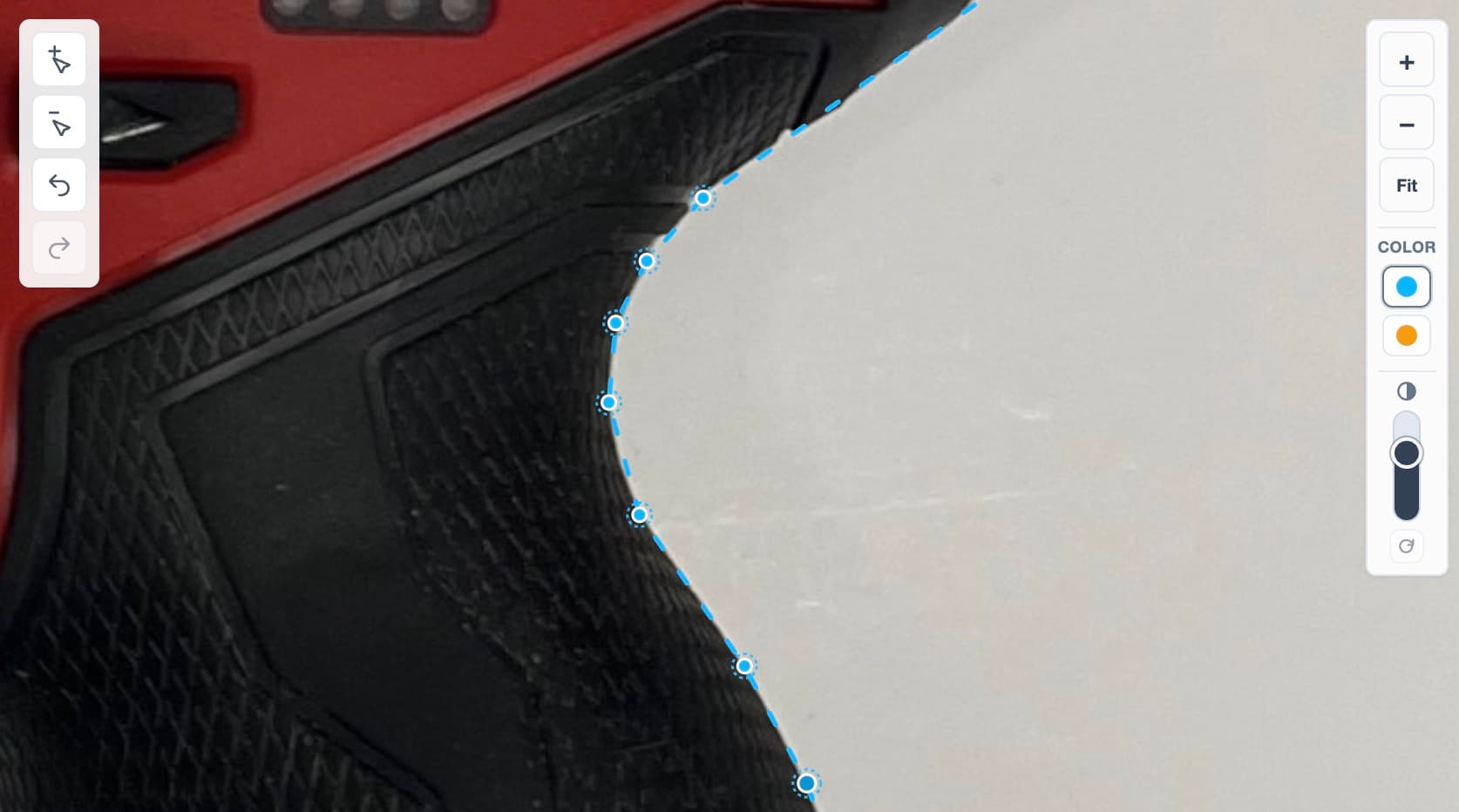
Fill in cavities for a simpler pocket
In many cases, a useful pocket outline does not need to follow every cavity in an object. For tools like these pliers, bridge the gap between the handle ends instead of tracing up into the space between them. This includes the cavity inside the pocket, leaving a simpler opening that can make the tool easier to place and remove.
Here, “fill in” means including the empty space within the outline, not physically filling the object. Following the gap would leave a narrow tongue of insert material between the handles. Keep that contour only when it serves a useful purpose, such as helping locate the tool, and still allows easy removal.
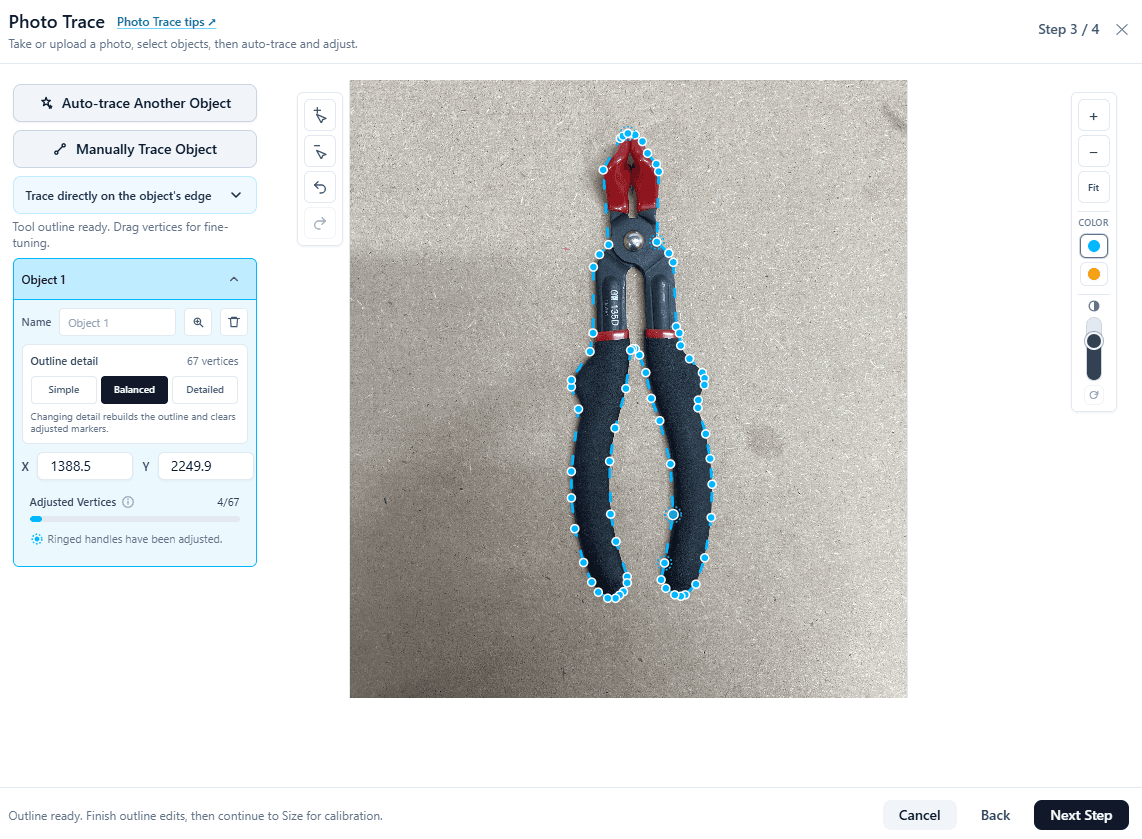
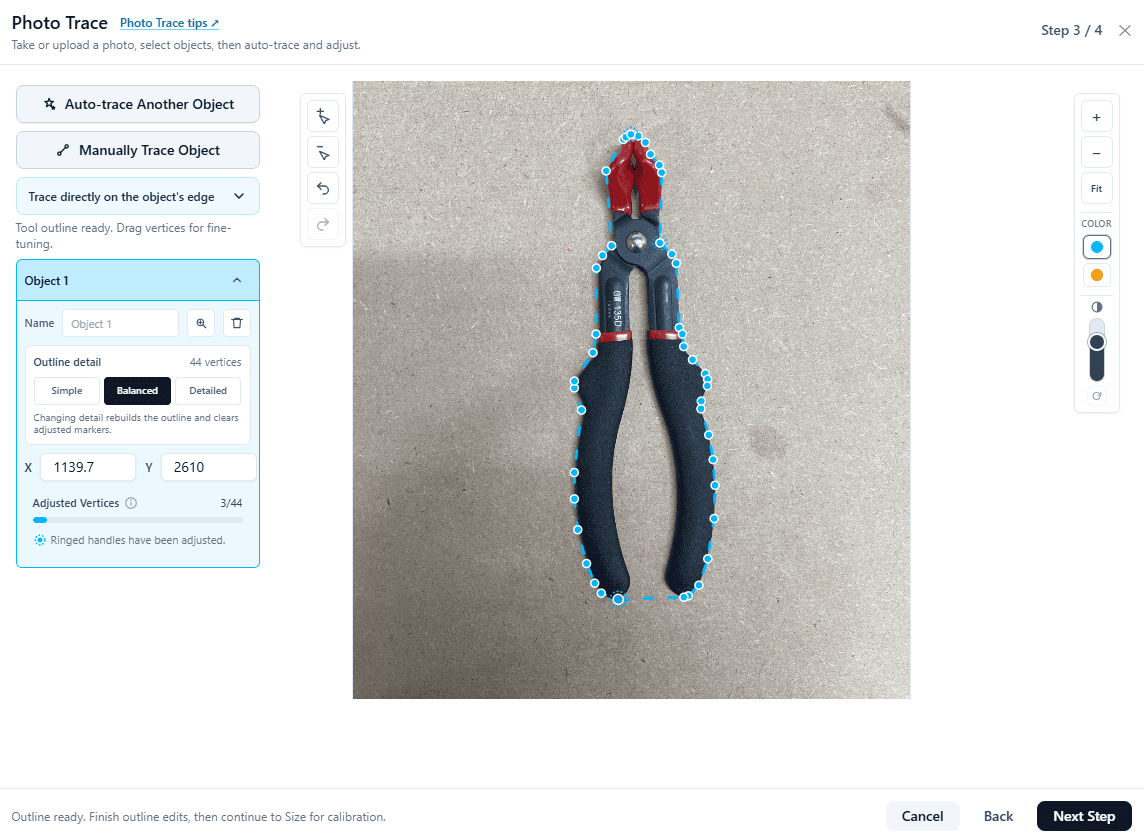
Use the minus (−) vertex button to remove the points that run into the cavity, then adjust the remaining points so the outline bridges its opening. When tracing manually, skip the inner gap and connect its outer ends. Keep following the object’s edge elsewhere, then review the whole outline and confirm it still includes the full object.
Trace multiple objects together
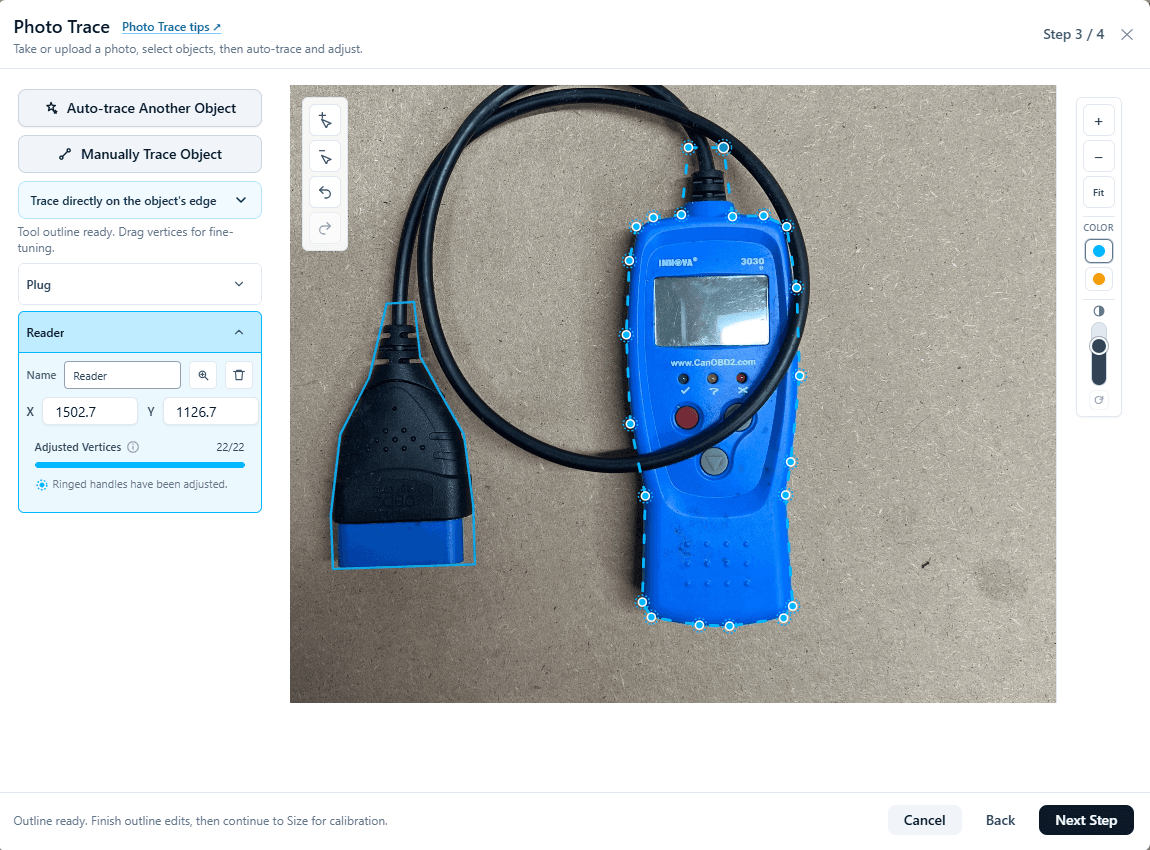
You can trace multiple objects in the same photo. Arrange them with the spacing you want, trace the first object, then choose Auto-trace Another Object or Manually Trace Object to add each remaining outline. Give each object a name so it is easy to identify while reviewing and sizing.
Photographing and tracing objects separately is usually more accurate. Separate photos give each object more room and reduce overlap, shadows, and perspective differences. Use one shared photo when arranging separate photos is impractical.
When added to the canvas, the traced objects form a group that preserves their relative positions and the distance between them. Move the group to position the whole arrangement together. Ungroup the objects when you want to move them independently or change their spacing.
Set the final size
The photograph establishes the shape, but your measurements establish its size. Take two measurements in directions that are approximately at right angles and enter them in the Size step.
Measure the object in the same position shown in the photo. Include the widest features that need to enter the pocket and can be easily identified and measured, and do not rely on a product’s nominal or labeled size when its outside dimensions differ.
Review before adding the pocket
- Confirm the outline includes the full object without nearby shadows or items.
- Smooth narrow notches or details that could catch the object during removal.
- Check both entered measurements against the physical object.
- If adding the pocket is unavailable, complete any required outline edits or measurements first. The configurator may require a finished outline and valid sizing checks before it can add the object to the canvas.
- After adding the pocket, review its dimensions, depth, and position.